Simulating Robotic Arms in Gazebo
In this tutorials, we will simulate robotic arms ur10e in Gazebo simulator.
1. Install Git
Open a terminal with CTRL+SHIFT+T, and run
sudo apt install git
Install Gazebo Fortress
First install some necessary tools:
sudo apt-get update
sudo apt-get install lsb-release gnupg
Then install Ignition Fortress:
sudo curl https://packages.osrfoundation.org/gazebo.gpg --output /usr/share/keyrings/pkgs-osrf-archive-keyring.gpg
echo "deb [arch=$(dpkg --print-architecture) signed-by=/usr/share/keyrings/pkgs-osrf-archive-keyring.gpg] http://packages.osrfoundation.org/gazebo/ubuntu-stable $(lsb_release -cs) main" | sudo tee /etc/apt/sources.list.d/gazebo-stable.list > /dev/null
sudo apt-get update
sudo apt-get install ignition-fortress
Clone the Repo
cd ~/ros2_ws
git clone -b 0.1.0 https://github.com/UniversalRobots/Universal_Robots_ROS2_GZ_Simulation.git src/ur_simulation_gz
Install Dependencies
sudo apt-get install ros-humble-ign-ros2-control ros-humble-ros-gz ros-humble-moveit ros-humble-ros2-control ros-humble-ros2-controllers ros-humble-ur-description ros-humble-ur-moveit-config
Build Workspace
cd ~/ros2_ws
colcon build --symlink-install
Try It Out
Use CTRL + ALT + T to open a terminal, and type
ros2 launch ur_simulation_gz ur_sim_control.launch.py ur_type:=ur10e
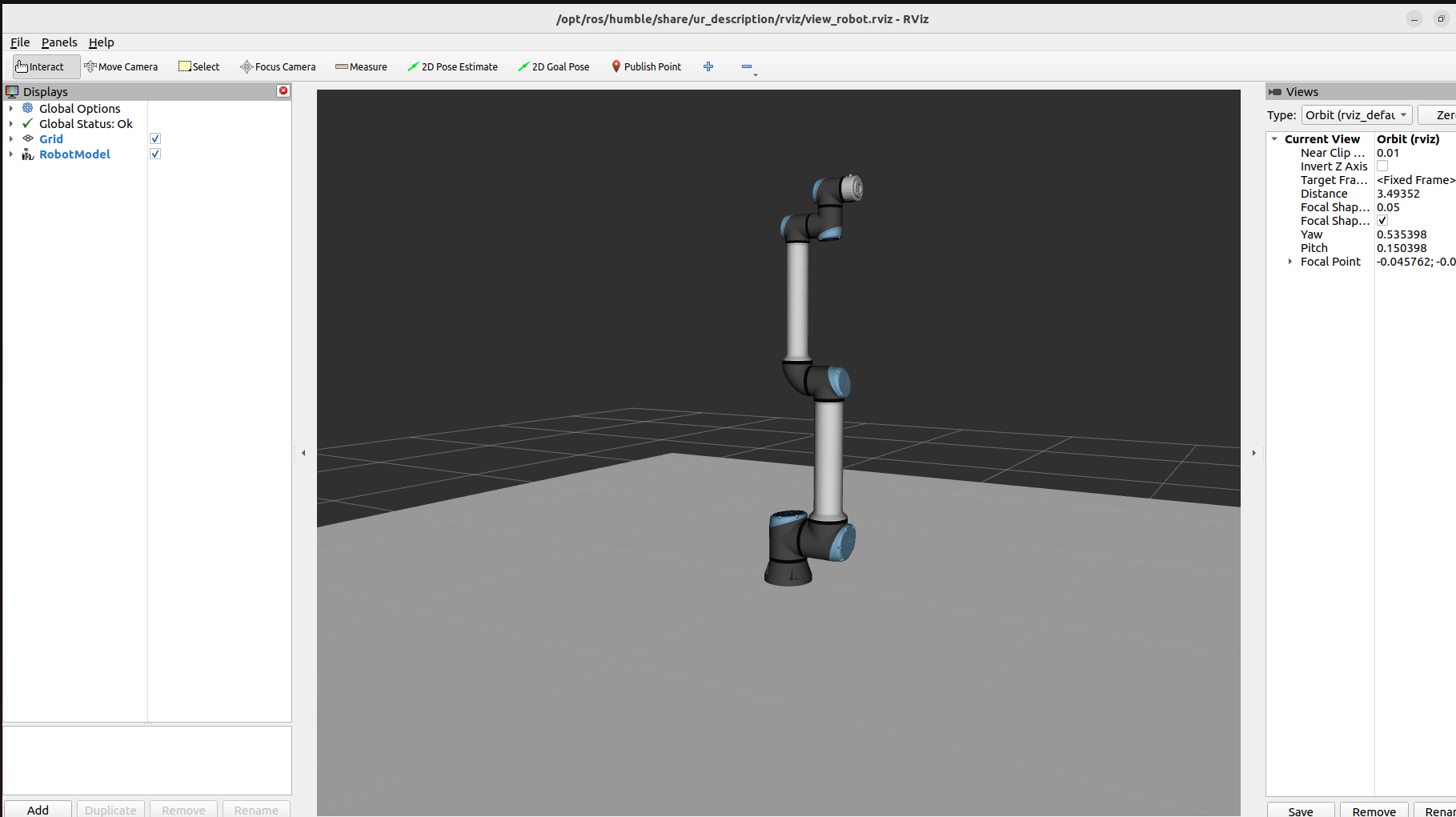
Close the default dialog and you will see a simulated robotic arm in Gazebo and RVIZ.