CoppeliaSim
Installation on Ubuntu 22.04
Download file
Go to the website and download the CoppeliaSim EDU

Select the Ubuntu 22.04 [x86_64] and download

When the download is done, you can find a file CoppeliaSim_Edu_V4_9_0_rev2_Ubuntu22_04.tar.xz in the Folder Downloads
Extract file
Right click the downloaded file and choose Extract Here, and wait until the extraction is done. It might take a few minutes.

Run the Simulation
Enter (Left click) the folder CoppeliaSim_Edu_V4_9_0_rev2_Ubuntu22_04. Right click and choose Open in Terminal. You will see a terminal like

Run the command
./coppeliaSim.sh
You will see the simulator launching, and you are ready to use it.
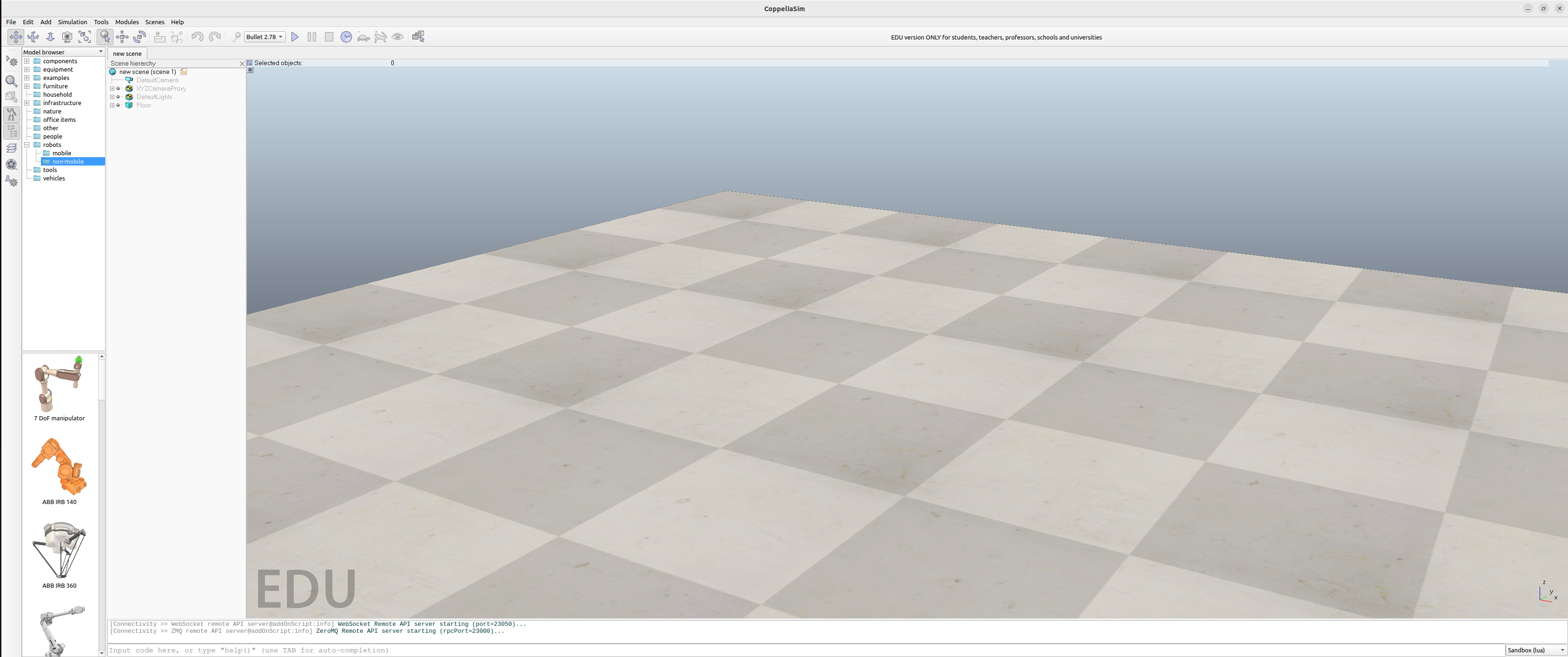
Using Python
In a new terminal, Type
pip install cbor pyzmq
After the installation, re-open the CoppeliaSim and you will be asked to choose between
LuaandPython. SelectPython.

Using ROS 2
Make sure you have installed ROS2 Humble, created and sourced the workspace ~\ros2_ws as shown in Ubuntu and ROS2 Installation Guide.
Enable ROS2 Plugin in CoppeliaSim
Note
Please install 2 ROS2 packages before this step, otherwise you will have an error.
In the input of Sandbox (python) at the very bottom, copy, paste and press enter on the keyboard
simROS2 = require('simROS2')

You will see output in the background terminal as

So the plugin was successfully loaded.
Install 2 ROS2 Packages
Install dependencies
sudo apt-get install xsltproc
python3 -m pip install xmlschema
Go to the ros2 workspace
cd ~/ros2_ws/src
Clone the packages simROS2
git clone https://github.com/CoppeliaRobotics/simROS2.git sim_ros2_interface
cd sim_ros2_interface
git checkout coppeliasim-v4.9.0-rev2
Note
If you are not using Version 4.9.0 (rev. 2), replace coppeliasim-v4.9.0-rev2 with the actual CoppeliaSim version you have.
Go to the ros2 workspace
cd ~/ros2_ws/src
Clone the packages ros2_bubble_rob
git clone https://github.com/CoppeliaRobotics/ros2_bubble_rob.git
cd ros2_bubble_rob
git checkout coppeliasim-v4.9.0-rev2
Compile the packages
cd ~/ros2_ws
export COPPELIASIM_ROOT_DIR=~/Downloads/CoppeliaSim_Edu_V4_9_0_rev2_Ubuntu22_04
ulimit -s unlimited #otherwise compilation might freeze/crash
colcon build --symlink-install --cmake-args -DCMAKE_BUILD_TYPE=Release
Note
if you extract CoppeliaSim in other locations, change export COPPELIASIM_ROOT_DIR=~/path/to/coppeliaSim/folder.
Note
If you start a new terminal, you will have to run export COPPELIASIM_ROOT_DIR=~/Downloads/CoppeliaSim_Edu_V4_9_0_rev2_Ubuntu22_04 every time before you compile your ros2 workspace. Run this to avoid echo "export COPPELIASIM_ROOT_DIR=~/Downloads/CoppeliaSim_Edu_V4_9_0_rev2_Ubuntu22_04" >> ~/.bashrc
Try it OUT
Launch CoppeliaSim
cd ~/Downloads/CoppeliaSim_Edu_V4_9_0_rev2_Ubuntu22_04
./coppeliaSim.sh
After the software is launched, open another terminal and Type
ros2 node list
Upon succesful ROS2 Interface load, checking the available nodes gives this:
ros2 node list
/sim_ros2_interface